



Connect Buildern to Claude or ChatGPT once, then ask about your projects, schedules, estimates and purchase orders in plain words. Available now on the Advanced plan.
You already use AI assistants to write emails and sort out ideas. Until now, they couldn’t see what was happening on your jobs. To get a real answer, you had to export a report, paste it in and hope nothing changed in the meantime.
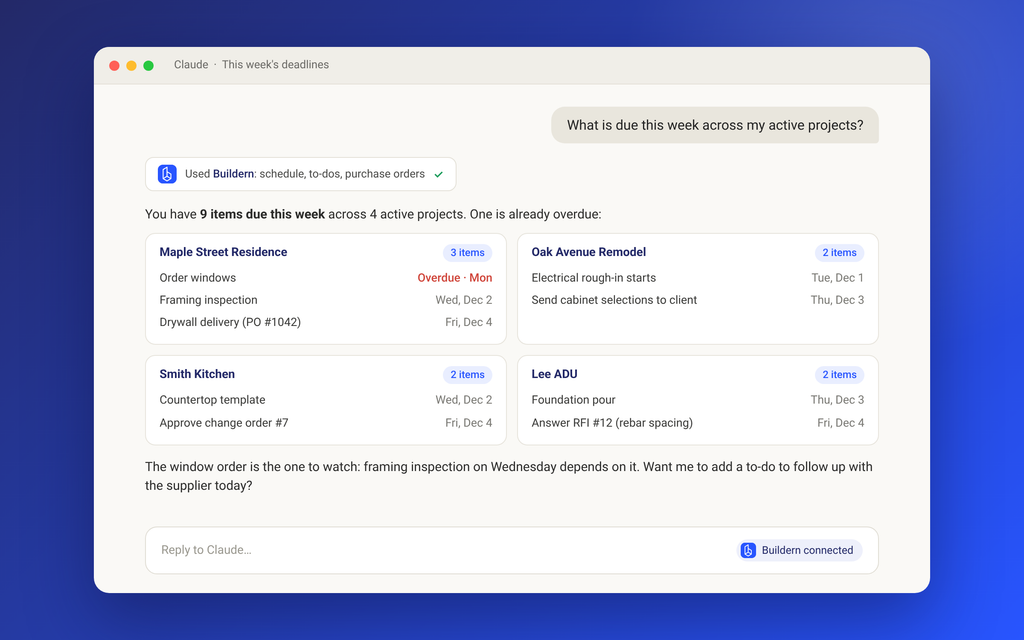
Today that changes. With the new Buildern MCP connection, Claude and ChatGPT can work with your live Buildern data: answer questions about it and make updates for you. Ask “Which to-dos are overdue on Maple Street Residence?” or “Summarise yesterday’s daily logs for all active projects” and get the answer from your actual records, not a spreadsheet from last week.
It can do the routine work too. Say “Add a to-do on Maple Street: order windows, due Friday, assign to me” or “Draft a change order for the extra kitchen outlets on the Smith job”, and it’s done in Buildern, right from the chat.
And it always plays by your rules. The assistant only sees what your Buildern role lets you see, and your company admin decides who can connect and what assistants are allowed to do.
What is MCP?
MCP (Model Context Protocol) is the open standard AI assistants use to talk to other apps. Think of it as a plug: Buildern now has one that fits Claude, ChatGPT and other assistants that support MCP.
You don’t need to install anything or write any code. You add Buildern to your assistant once with a single server URL, sign in with your own Buildern account, and pick what the assistant can do. From then on, Buildern is just there when you ask a question.
What you can ask and do
The assistant works with Projects, Clients, Estimates, Purchase orders, Change orders, Schedule, Daily logs, To-dos, RFIs, Submittals, Timesheets and more. A few ways builders are already using it:
| When you want to… | Ask your assistant |
|---|---|
| Start the day with a clear picture | “What is due this week across my active projects?” |
| Chase loose ends | “List overdue to-dos on Maple Street Residence, grouped by assignee.” |
| Catch up on site activity | “Summarise the last five daily logs on the Smith job.” |
| Plan next week’s crews | “Which schedule items on Oak Avenue start next week?” |
| Unblock open questions | “Show open RFIs older than 7 days and who they are waiting on.” |
| Check your pricing | “Compare the totals of the two latest estimates for the Lee project.” |
| Keep an eye on spending | “List purchase orders for ABC Lumber this month.” |
| Get something done | “Add a to-do on Maple Street: order windows, due Friday, assign to me.” |
| Document extra work | “Draft a change order for the extra kitchen outlets on the Smith job.” |
Tip: name the project in your question. It helps the assistant find the right records faster.
You stay in control
Your data is your business, so control sits with you and your admin:
- Admins decide who connects. In Company settings, turn AI assistants on, then let everyone connect or only selected roles and people.
- You choose what the assistant can do. Pick Limited access (see and summarise only), Full access, or Custom, where you set View, Add, Edit and Delete module by module.
- Your role always applies. The assistant acts as you. It never sees projects or financials your Buildern role keeps from you.
- Your password stays private. You sign in on Buildern’s own page, and the assistant only gets a secure token.
- Every connection is visible. Admins see who has connected an assistant and can disconnect anyone, or switch all assistants off at once.
- You confirm changes. Claude asks for your approval the first time it uses a Buildern tool, and ChatGPT asks you to confirm before it creates, changes or deletes anything.
Works with: Claude (Free, Pro, Max, Team and Enterprise, on web, desktop and mobile) and ChatGPT (Business, Enterprise and Edu, plus Pro with read actions). Buildern MCP is available on the Advanced plan.
Building something of your own? Meet the Buildern API
MCP runs on the new Buildern API, which is also open to your team or developer. Use it to connect Buildern to the other software you run your business on.
- Set up apps in Settings and choose exactly what each one can see and change, and which projects it reaches.
- Connections keep running without anyone having to log in again.
- A clear trail: anything done through an app is marked with that app’s name.
Get started in a few minutes
- Admin: in Buildern, go to Company settings > API & MCP > MCP, turn on Allow AI assistants, choose who can connect, and share the Server URL with your team.
- Everyone: add Buildern as a custom connector in Claude, or as a custom MCP plugin in ChatGPT, using that URL.
- Sign in with your Buildern account, pick your company and access level, and click Allow.
- Ask your first question.
For step-by-step instructions with screenshots, read our help article: Connect Buildern to Claude and ChatGPT.
Not on the Advanced plan yet? Talk to our team about upgrading and start asking your assistant about your jobs today.